The operatory-to-front-desk
messenger for dental practices
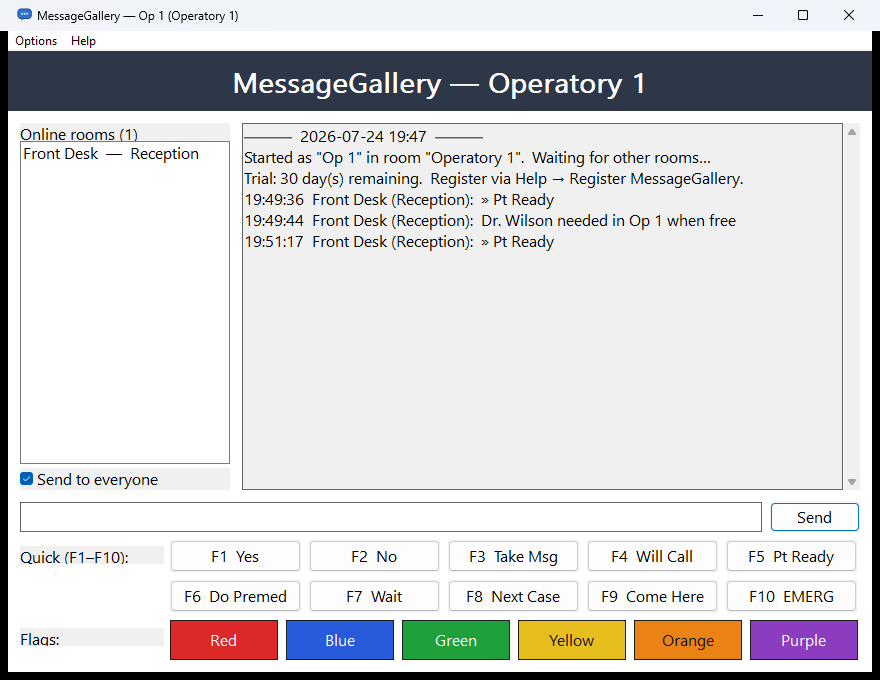
MessageGallery puts silent, instant room-to-room messaging on every workstation in your practice — no server, no setup, no subscription cloud. Press F5 and the front desk knows the patient is ready.
Zero servers
Every room is an equal peer. Workstations discover each other automatically on your office network — nothing to install on a server, nothing to maintain.
One-keystroke speed
Ten preset quick messages on F1–F10 — “Pt Ready”, “Next Case”, “EMERG” — because in an operatory you don’t have time to type.
Delivery you can trust
Every message is individually confirmed by each receiving room, so “sent” actually means “seen by their workstation”.
Absurdly light
One self-contained program under 1 MB. Copy it to a PC, run it, done. It lives quietly in the system tray until someone needs you.
Flags: the alert nobody can miss
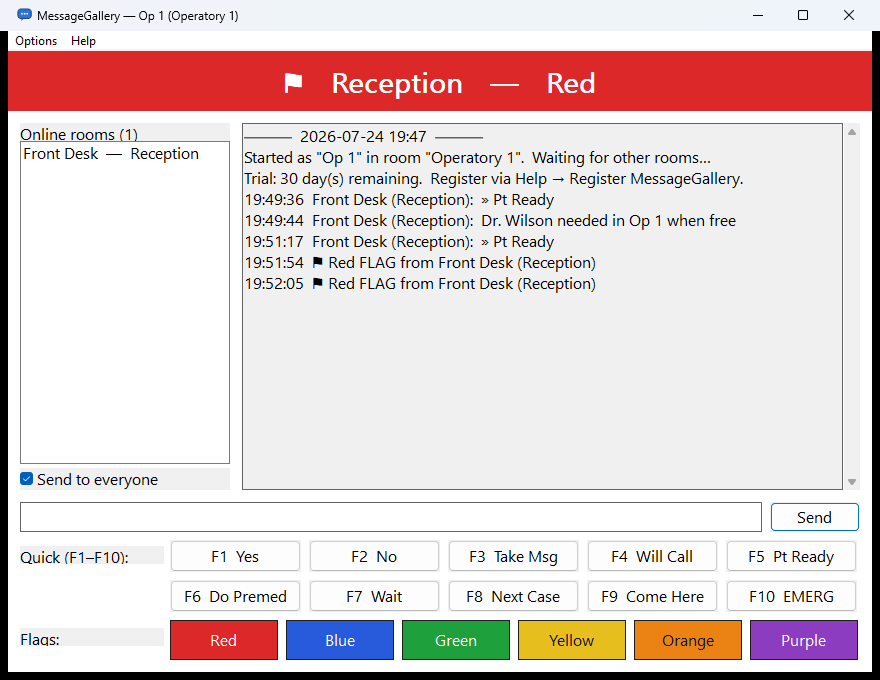
Some moments need more than a chat line. Send a colored flag and a full-width banner takes over the top of the recipient’s window — with a tray flash and an audible tone. Assign your own meanings: red for “doctor needed now”, green for “room turned over”, yellow for “running behind”.
Six colors. Instant. Unmissable.

Built for how a dental office actually runs
Intercoms interrupt patients. Texting means picking up a phone with gloved hands. Walking down the hall costs minutes, dozens of times a day. MessageGallery was designed inside working practices: rooms are operatories, presets are the phrases your team already uses, and everything works with a single glance or keystroke.
From the makers of PatientGallery — software that lives in dental operatories all day, every day.
Up and running in three minutes
No IT project. No accounts. No cloud.
Copy
Drop MessageGallery.exe and its settings file into a folder on each workstation. That’s the whole install.
Name the room
Open MessageGallery.ini in Notepad and give the workstation its name — “Operatory 1”, “Front Desk”, “Steri”.
Run it
Launch the app (allow it through the Windows Firewall prompt). Rooms find each other automatically and you’re messaging.
Try it free for 30 days
Full features, every room, no card. Register when your team can’t live without it.